Price it and take a deposit
When you finish: The repair has the price you agreed, and any deposit is recorded against it.
About 3 minutesLast checked against the app:
Add the price
- Step 1: Open the repair. In the Quote box, press Add Item.
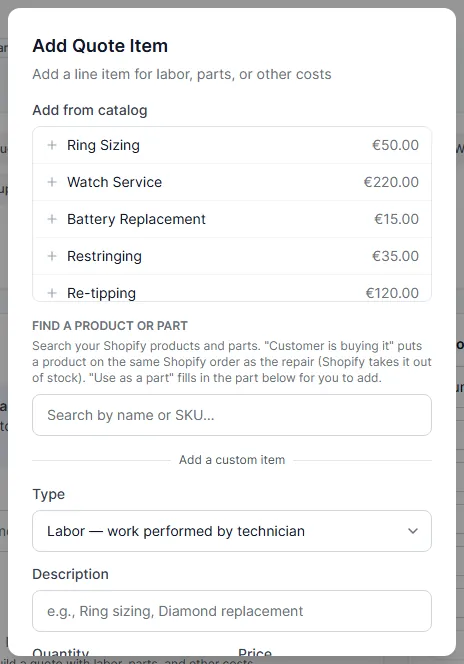
- Step 2: Pick the repair from the list, for example Ring Sizing. Or type a description and price under "or add manually" and press Add.
- Step 3: Price agreed at the counter? Press Approve in store. Nothing is sent to the customer.
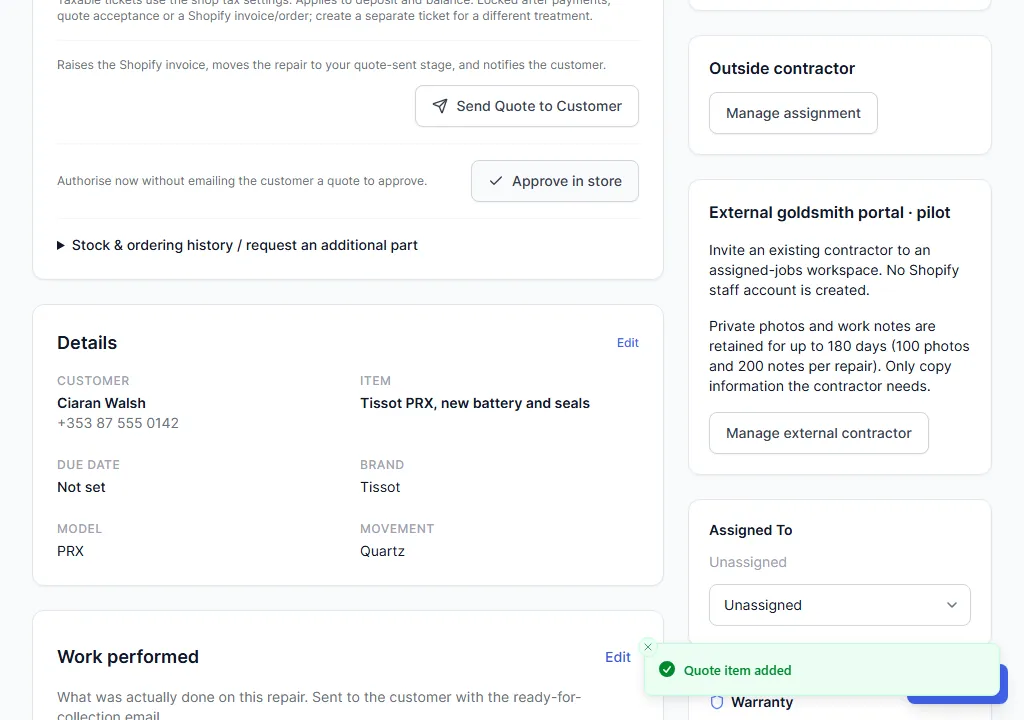
Need to look at it before you can price it? Add the price later, then send the quote: the customer approves or declines it from their link.
Take a deposit
How you take a deposit depends on how you take money.
- Step 1: On Shopify POS: tap Take repair payment, pick the repair, and charge the deposit on the till. It shows on the repair within a minute.
- Step 2: On the RepairDesk website without Shopify: on the new repair form, tick Collect deposit at intake and type the Amount. Or, on the repair, press Record Payment and choose the deposit type.
Card machine and Cash at hand-back record the whole balance, not a deposit.
Stuck?
Press Ask us at the bottom right of any RepairDesk page and tell us which step. We write back with the exact next step.
Or email support@repairdeskapp.net