Take payment and hand it back
When you finish: The repair is paid, closed and shows Completed, whether they paid by card machine, cash or Shopify POS.
About 3 minutesLast checked against the app:
The repair needs its price first. If it has none, add it in the Quote box with Add Item.
- Step 1: Take the money on your card machine, or in cash, the way you always do.
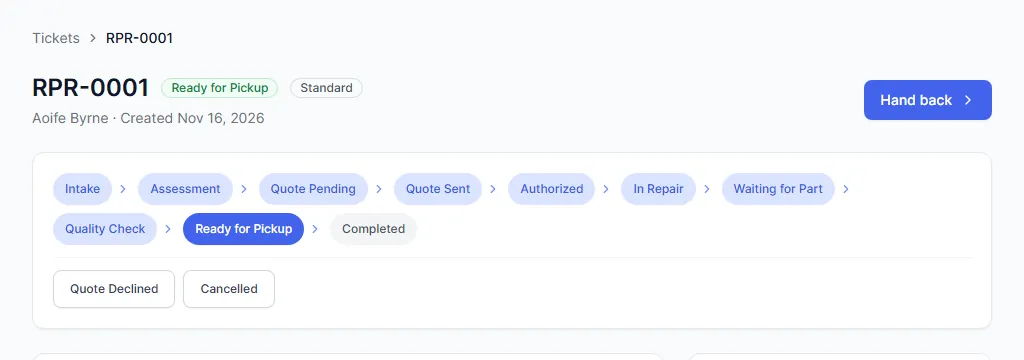
- Step 2: Open the repair and press Hand back.
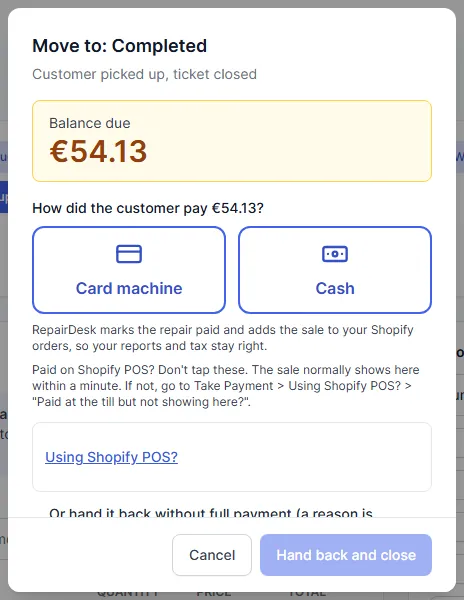
- Step 3: The box opens on the balance and asks "How did the customer pay?". Tap Card machine, or Cash if they paid cash. RepairDesk marks the repair paid for that amount and adds it to your Shopify orders as a paid order. It does not charge their card, and cash recorded here does not go through your Shopify POS cash drawer.
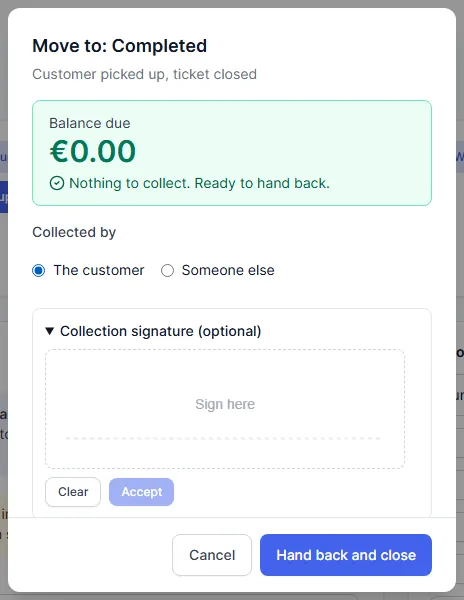
- Step 4: The box now says "Nothing to collect. Ready to hand back." Press Hand back and close.
Already paid on Shopify POS? Do not tap Card machine or Cash, and do not mark it paid. A sale rung on the RepairDesk tile normally reaches the repair within a minute. If it has not, press Take Payment and use "Paid at the till but not showing here?" (inside Using Shopify POS? if you see that).
If you see Take the payment first instead
- Step 1: Take the money as usual. Then press Hand back, then Take the payment first. RepairDesk takes you to the Payments box on the repair.
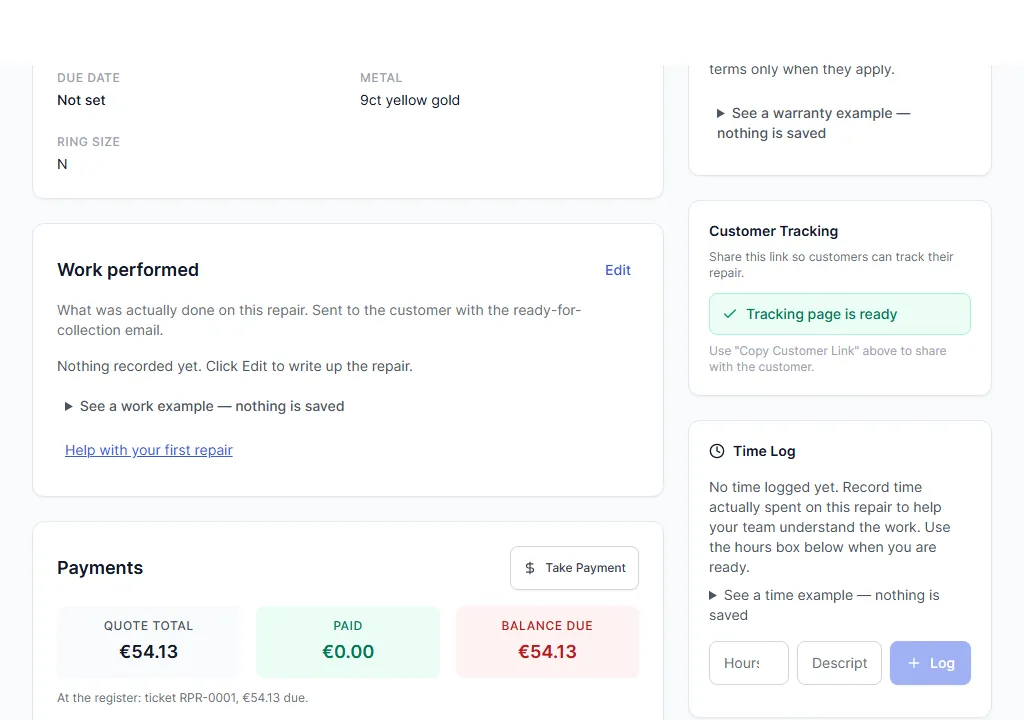
- Step 2: Press Take Payment.
- Step 3: At the bottom of that box, press Mark invoice paid. It marks this repair's Shopify invoice paid. It records the sale; it does not run it through your till.
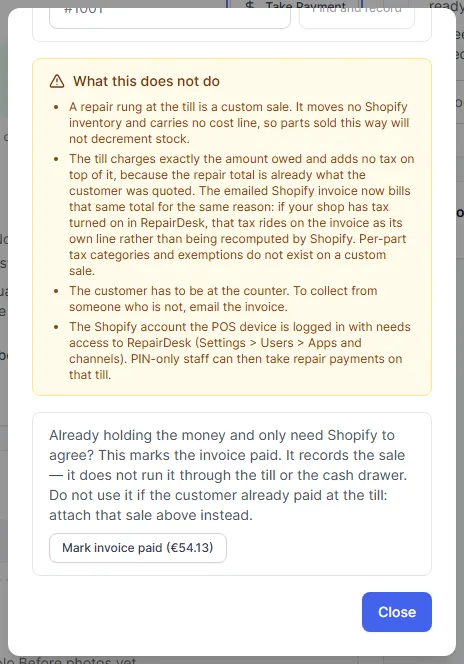
- Step 4: Press Hand back again, then Hand back and close.
Stuck?
Press Ask us at the bottom right of any RepairDesk page and tell us which step. We write back with the exact next step.
Or email support@repairdeskapp.net