Send it to an outside workshop and get it back
When you finish: You can see which repairs are out with your goldsmith or watch workshop, and when each one came back.
About 3 minutesLast checked against the app:
Once: add your workshop
- Step 1: Open Settings and choose the Team tab.
- Step 2: In the Workshops box, press Add a workshop (or Add Workshop if you already have one).
- Step 3: Type the Workshop Name. Add their Email and Specialty if you like, for example Stone setting. Press Create.
Send a repair out
- Step 1: Open the repair. Find the Workshop Send-Outs box and press Send to Workshop.
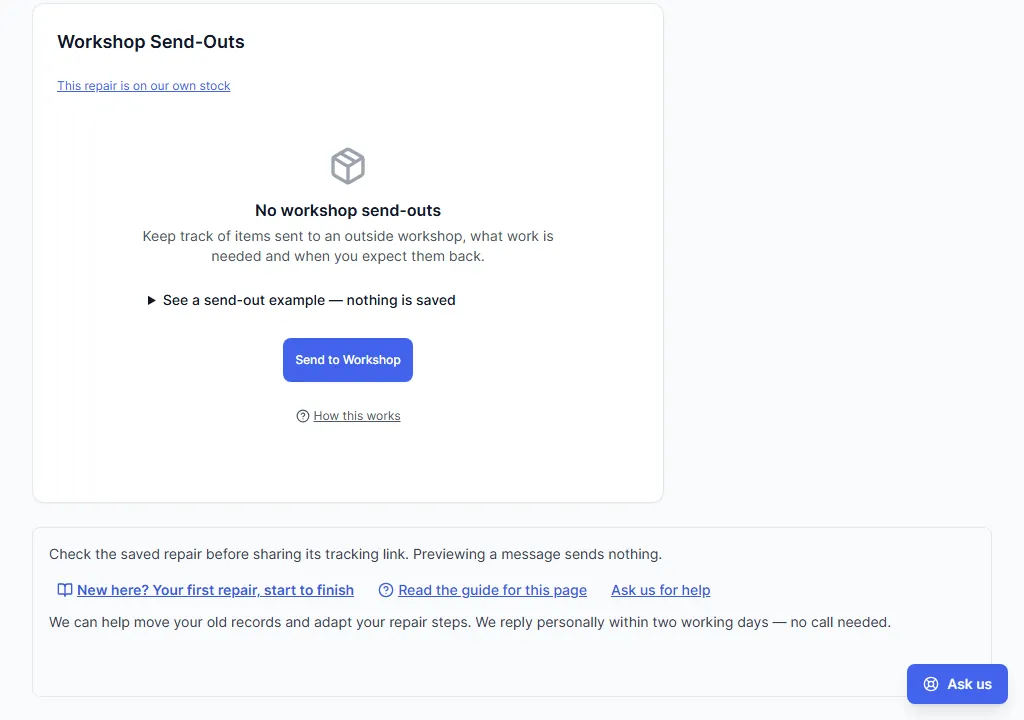
- Step 2: Pick the Workshop, for example Byrne Goldsmiths. Write what they need to do in Description, for example Re-tip four claws. Pick the Expected Return date.
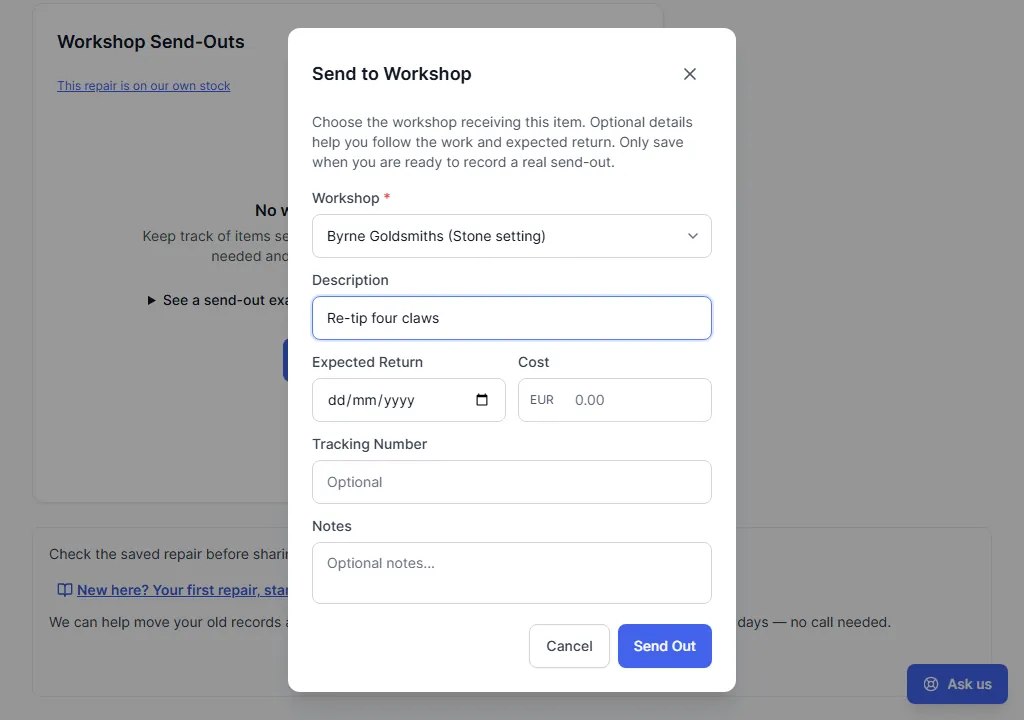
- Step 3: Press Send Out. The repair now shows Sent, with the date it went and the date you expect it back.
If you see More tools instead of Workshop Send-Outs
- Step 1: Press More tools. New shops have these boxes folded away until their first repair is finished.
When it comes back
- Step 1: Open the repair and press Mark Returned. Press Mark Returned again to confirm.
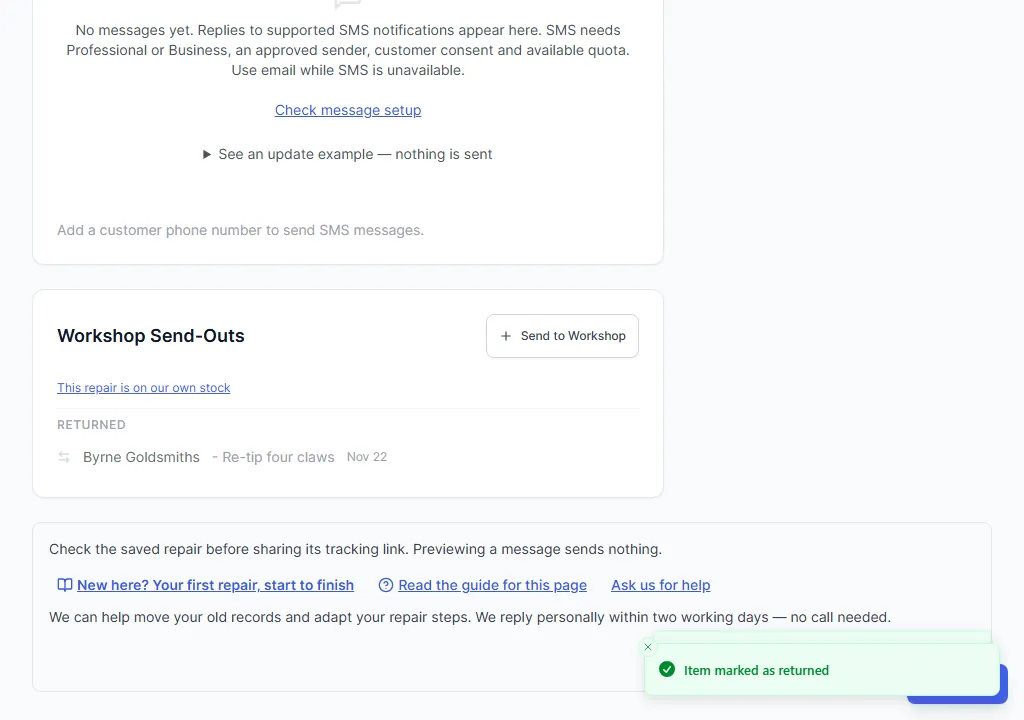
Sending a repair out does not change its stage, and it does not message your customer. Move it to Ready for Pickup when it is ready.
Can my goldsmith see the job?
Yes. Your goldsmith never needs a Shopify login. Give them a RepairDesk login and the Contractor role, and they see only the jobs you share with them. See Staff and PINs.
Stuck?
Press Ask us at the bottom right of any RepairDesk page and tell us which step. We write back with the exact next step.
Or email support@repairdeskapp.net